
AI text to speech: hear any text in a natural voice
Paste or type any text and VoiceRead's AI text to speech reads it aloud in a natural voice within seconds. PDFs, ebooks and web links work the same way, and Studio turns a script into a voiceover you can export as an audio file.
From text to voice in three steps
- 01Add your textType or paste it, open a file from the Files app, paste a link to an article, or scan a printed page with the camera.
- 02Pick a voiceStandard voices are free; Pro adds premium voices. Preview a voice before you choose it and set the speed anywhere from 0.5–3.5×.
- 03Listen or exportPress play and follow the highlighted sentence. Or generate a voiceover in Studio and save it as an audio file.
Listen to it now, or keep it as audio.
In the reader, VoiceRead reads your text out loud while the sentence being spoken is highlighted. It saves your place in every document, keeps playing with the screen locked, and lets you pin a note to the sentence you're hearing. Use it for a long email, an article or your own draft.
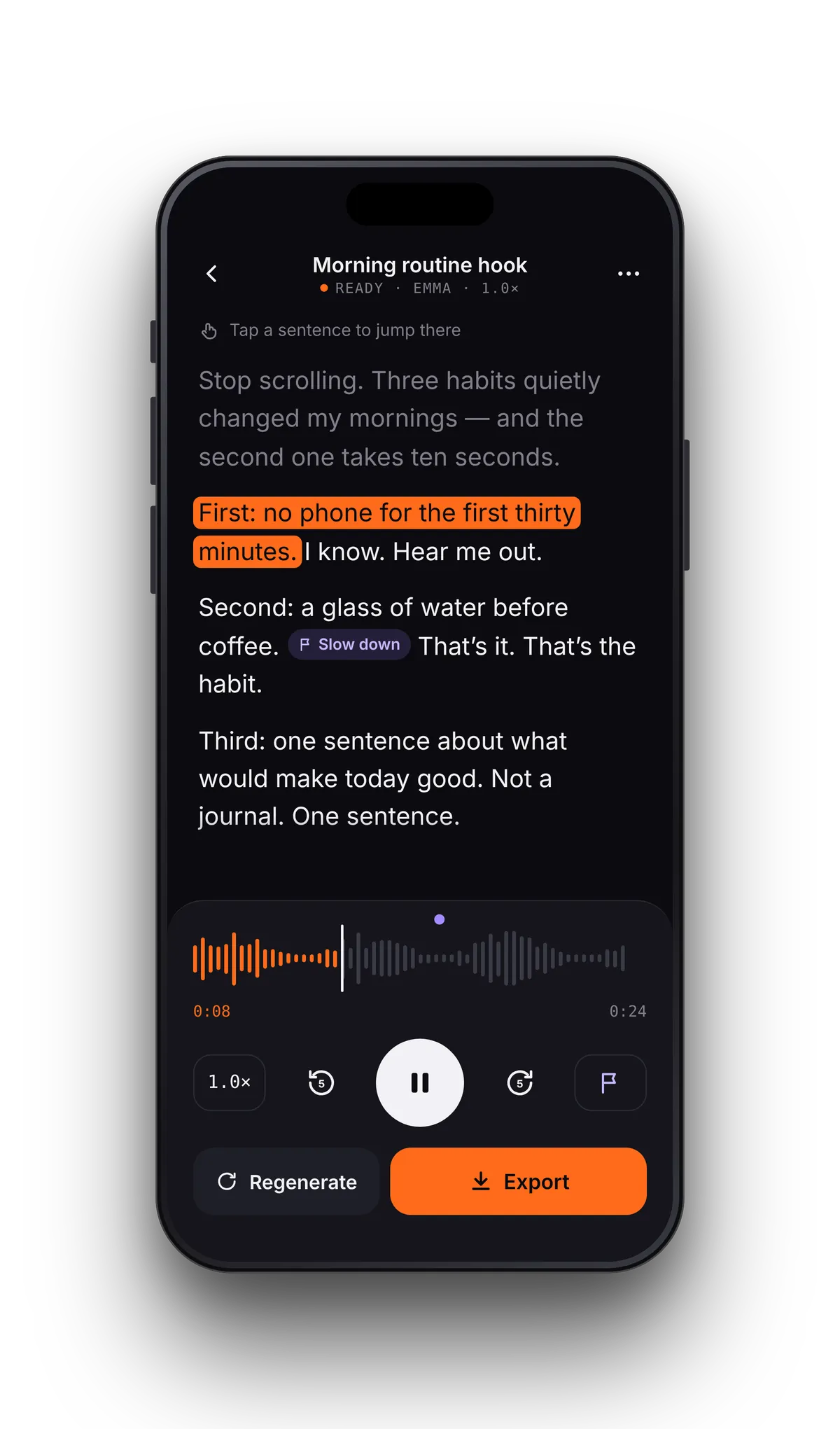
In Studio, the same voices make voiceovers. Paste or import a script, pick a voice and a speed from 0.75× to 1.5×, generate it and listen back with the text highlighted. Then export an M4A file. Pro adds 256 kbps M4A, lossless WAV, an .srt captions file and commercial use of the audio.
- Narration for videos, reels and slides
- Intros and promos for a podcast
- A speech or presentation to rehearse by ear
- Notes to listen to again on a walk
See each sentence as you hear it.
The sentence being read lights up as the voice reaches it, in the reader and in Studio playback. Tap any sentence to start from there. It's also the quickest way to catch a wrong word in a script before you export it.
Everything around the voice
The voice is the core. These are the parts that make it useful every day.
If it has text, VoiceRead can read it.
Open documents from the Files app, where iCloud Drive, Google Drive and Dropbox appear. Paste a link and the article is read without its menus and ads. Or point the camera at a printed page. Every format gets the same highlighting, voices and saved place. See every format.
A few things won't open: ebooks bought in the Kindle or Apple Books stores (they're locked with DRM), scanned PDFs without a text layer (use the camera scan instead), and RTF or HTML files (save them as PDF, DOCX or TXT first).
- PDF: textbooks, papers and contracts
- EPUB: DRM-free ebooks, with a chapter list
- DOCX and TXT: including Google Docs exported as a file
- Web articles: paste a link
- Scans: printed pages, letters and menus
Common questions
- What is AI text to speech?
- It's software that reads written text out loud in a natural-sounding voice. In VoiceRead you paste text or open a file, pick a voice and press play, or turn the text into an audio file in Studio.
- Is VoiceRead's text to speech free?
- Yes. Listening and making voiceovers with the standard voices is unlimited and needs no account, and your first 3 audio downloads are free. Pro adds premium voices, unlimited downloads, WAV and .srt captions. See pricing.
- Can I turn text into an audio file?
- Yes. Paste the text into Studio, generate a voiceover and export it as M4A, which plays everywhere MP3 does. Direct MP3 export is coming soon. Export options.
- Is there a word or character limit?
- There's no monthly word quota. Listening with the standard voices is unlimited, and VoiceRead doesn't set a word or character quota on Pro voices.
- Can I use the audio in videos or ads?
- Yes, with Pro, which allows commercial use of the audio you export. Turn on the .srt captions file and the subtitles line up with the voice.
- Does it work on Android, Mac or the web?
- VoiceRead is made for iPhone and iPad. Macs with Apple silicon can install the iPad version from the Mac App Store, but it isn't optimized for the Mac yet. An Android version is coming soon; there's no Windows or web app.