
Offline text to speech, and audio files you keep
Offline text to speech works for everything already in VoiceRead: once a PDF, ebook or scan is in the app, the standard voices read it with no connection. When you want the audio itself, Studio turns your text into an M4A or WAV file you save to Files or share.
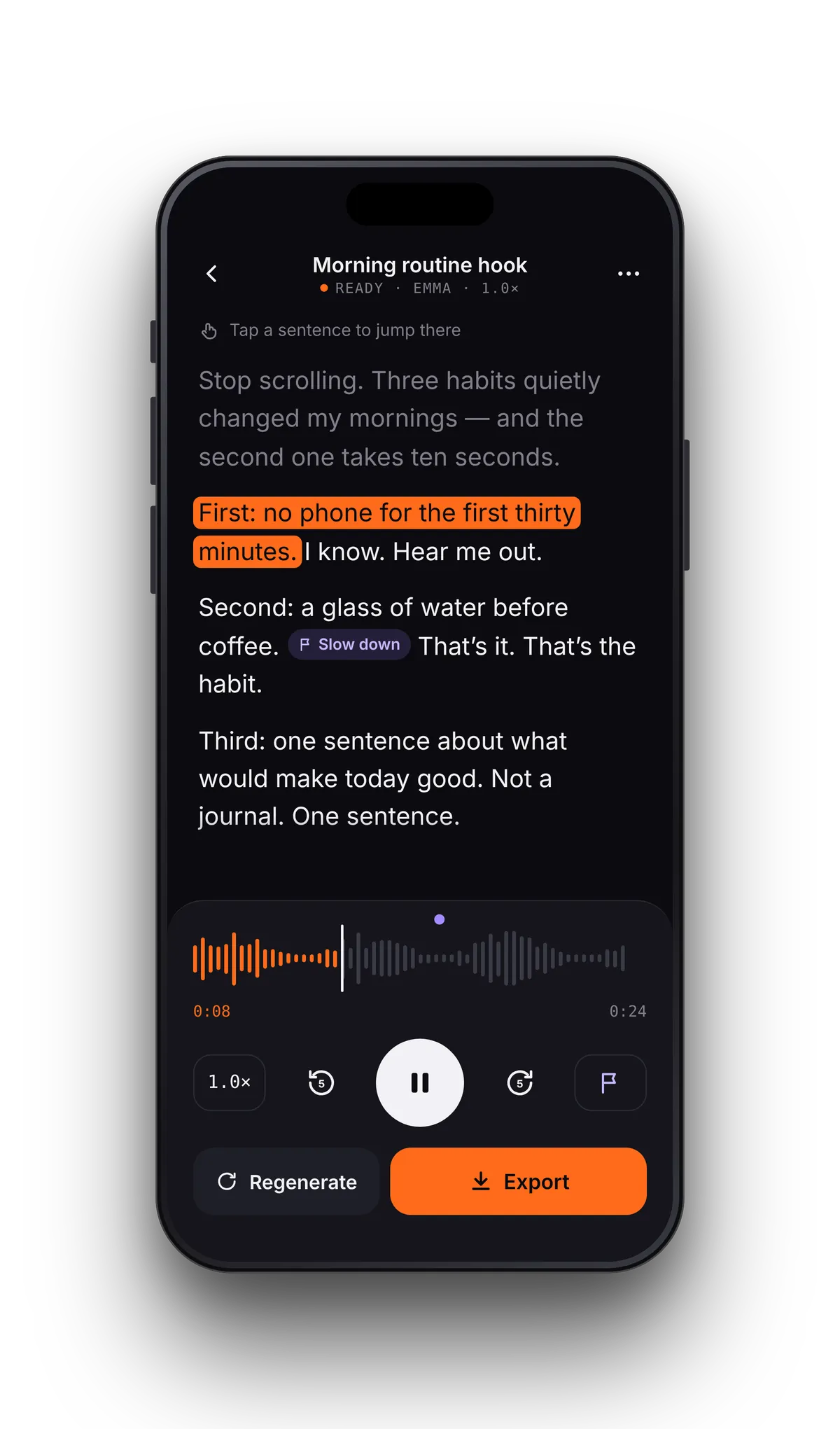
Text to audio file in three steps
- 01Start a voiceoverIn Studio, tap + and type or paste your script, or bring it in from a file, a link or a camera scan.
- 02Generate and checkPick a voice and a speed from 0.75× to 1.5×, tap Generate voiceover, then listen back with each sentence highlighted.
- 03ExportTap Export, name the file, choose M4A or WAV and the quality, then Save to Files or share it to another app.
Offline text to speech: on a plane, underground, anywhere.
Once a file is in VoiceRead, the standard voices read it with no connection. That covers PDFs, ebooks, Word and text files, and pages you scanned with the camera. Studio works offline too, and audio you've exported is an ordinary file that plays without signal.
Two things need a connection: premium voices, and importing a web link. Before a flight, switch to a standard voice and add the articles you want while you're still online. If a file lives in iCloud Drive, Google Drive or Dropbox, open it in VoiceRead while you're connected.
- Reading imported PDF, EPUB, DOCX and TXT files with standard voices
- Camera scan: text recognition works without a connection
- Making Studio voiceovers with standard voices
- Playing audio you've already exported
Download text to speech audio: what each plan exports.
| Free | Pro | |
|---|---|---|
| Format | M4A | M4A or lossless WAV |
| M4A quality | 128 kbps | 256 kbps |
| Downloads | 3 in total | Unlimited |
| .srt captions | — | Yes, timed to the voice |
| Voices | Standard | Standard and premium |
| Commercial use | — | Yes |
| MP3 | Coming soon | Coming soon |
The 3 free downloads are a one-time allowance, not a monthly one; generating and listening stay unlimited. M4A plays everywhere MP3 does. Pro is $2.99 a week or $49.99 a year. See pricing.
Where your audio goes.
Every export is an ordinary audio file, and you decide where it lands.
Check every sentence before it becomes a file.
Studio plays your voiceover back with the script highlighted sentence by sentence. Tap a sentence to jump there, edit the script and regenerate, then export when it sounds right.
Offline and export questions
- Does VoiceRead work offline?
- Yes. Files, scans and text already in VoiceRead are read by the standard voices with no connection, Studio works offline with standard voices, and exported audio plays anywhere. Premium voices and importing a link need a connection.
- Can I download text to speech audio as MP3?
- Not yet. Direct MP3 export is coming soon. VoiceRead exports M4A, which plays everywhere MP3 does, and lossless WAV with Pro.
- How many free downloads do I get?
- 3 in total, as 128 kbps M4A files. It's a one-time allowance, not a monthly one. Pro removes the limit.
- Where are exported files saved?
- Wherever you choose. Save to Files lets you pick a folder on your device or in iCloud Drive; Share sends the file to another app.
- Can I turn a whole PDF or book into an audio file?
- Yes, through Studio: import the file or paste the text, generate a voiceover and export it. Long books are easiest chapter by chapter. How to convert a PDF to an audiobook.
- Can I export audio from the reader?
- Export lives in Studio; the reader is for listening. To keep the audio of something you're reading, paste or import the same text in Studio.