
Read web pages aloud: paste a link, hear the article
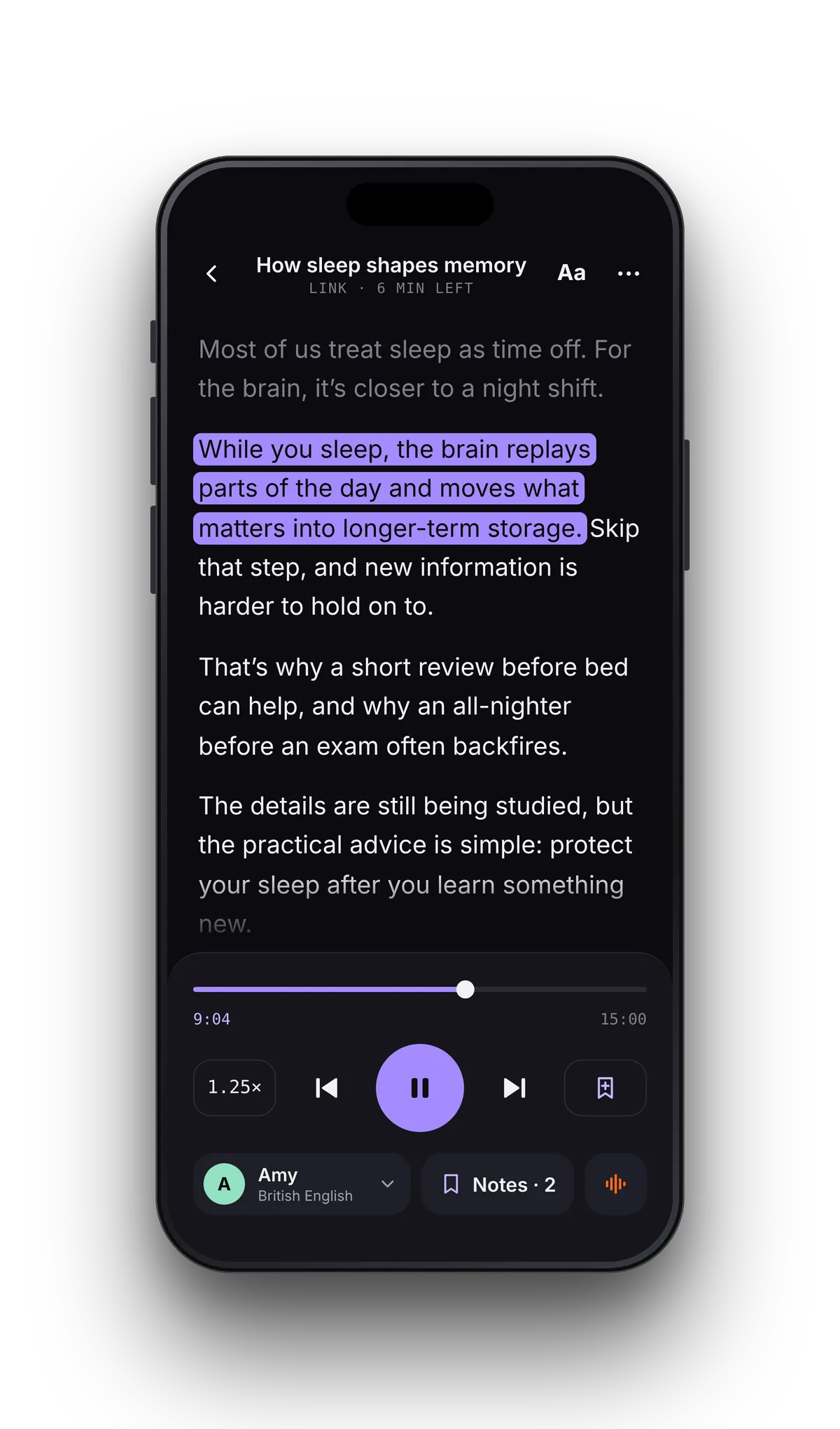
Read web pages aloud by pasting a link: the menus, ads and cookie banners are dropped and only the article is read to you, each sentence highlighted as it goes. Your place in every article is saved, so a long read can wait for the commute.
From browser tab to audio in three steps
- 01Copy the linkIn Safari, Chrome or any other app, open the Share menu on the page and tap Copy or Copy Link.
- 02Paste it in VoiceReadChoose Paste a link and paste. The web page loads, the article is kept and the clutter is left behind.
- 03Press playPick a voice and a speed from 0.5–3.5×. Lock the phone and keep listening, with play and pause on the lock screen and your AirPods.
Just the article, one highlighted sentence at a time.
Only the article's title and body text are kept. Navigation, ads, cookie banners, share buttons, comment threads and “related” boxes are left out of the web page you hear. Tap any sentence to start from there.
Articles, posts and links to documents.
Paywalls and script-heavy pages: paste the text instead.
VoiceRead loads a page the way a visitor without an account sees it. If an article sits behind a paywall, or the site builds its text with JavaScript after the page opens, VoiceRead may get only part of it — or tell you it found no readable text.
The fix takes a few seconds: open the article in your browser, where you're signed in, select the text and copy it. In VoiceRead, choose Type or paste text and paste. You get the same voices, highlighting and saved place.
- Subscriber-only articles: copy the text from your browser
- Pages that need JavaScript: copy the text
- Loading a page needs a connection; once it's in VoiceRead, standard voices read it offline
Listen to articles on the walk, at the gym or over the dishes.
Web article questions
- How do I make my iPhone read a web page aloud?
- Copy the page's link, open VoiceRead, choose Paste a link and press play. The built-in Speak Screen (Settings → Accessibility → Read & Speak) can also read whatever is on screen, but it doesn't strip the clutter or save your place.
- Is there a Safari or Chrome extension?
- No. VoiceRead has no browser extension or Share-menu shortcut; it works from a pasted link. Copy the link from your browser's Share menu, then choose Paste a link in VoiceRead.
- Why won't an article load?
- Pages behind a paywall or built with JavaScript may not load from a link. Open the article in your browser, copy the text and paste it into VoiceRead instead.
- Can it read a PDF from a link?
- Yes. A link straight to a PDF, EPUB, DOCX or TXT file opens as that document, with highlighting and your place saved.
- Do I need an internet connection?
- To load the page, yes. Once the article is in VoiceRead, the standard voices read it offline; premium voices need a connection.